Essential Tech Tips for New PC Users

Essential Tech Tips for New PC Users can make your first days with a computer fun instead of scary. Many people feel lost when they open a new PC box. This article will hold your hand and show you the most important things to know, using only easy words and short sentences.
You do not need to be smart with machines. You only need to learn a few basic habits. These habits will keep your computer fast, safe, and happy for many years.
Why These Essential Tech Tips for New PC Users Matter
A computer is like a new house. If you learn where the doors and windows are from the first day, you will feel at home quickly. If you do not, you may break something by mistake.
First Steps When You Open the Box
Take Everything Out Slowly
Open the box carefully. You will find the computer, a power cable, maybe a mouse and keyboard. Sometimes there is a small book with pictures. Keep that book. It is the manual.
Put the Computer in a Good Place
Choose a table that is strong. Leave some empty space behind the computer so air can move. Computers get warm when they work. Good air keeps them cool and healthy.
Connect the Cables the Right Way
Look at the holes on the computer. Each cable has a shape that fits only one hole. Never push hard. If it does not go in easily, turn it around and try again.
Turning On Your Computer for the First Time
Press the power button once. It usually has a circle and a line symbol. The screen will light up. The computer will ask you a few questions: language, country, your name, and a password.
Choose a password that is easy for you but hard for others. Mix letters and numbers. Write it on paper and keep the paper in a safe place at home.
Important Places on Your Screen
The Desktop
This is the first big picture you see. It is like the top of your table at home.
The Taskbar (the bar at the bottom)
Here you find the Start button (usually a window picture), the time, and small pictures of programs you are using.
Icons
Small pictures on the desktop. Each one opens something when you click two times with the left mouse button.
How to Click Correctly
- One slow click = choose something
- Two quick clicks = open something
- Right click = shows a menu with more choices
Practice on an empty place of the desktop with the right button. A menu will appear. It is safe.
Keep Your Computer Clean and Fast
Empty the Recycle Bin Every Month
When you delete files, they go to the Recycle Bin first. It is like a trash can. Right-click the bin icon and choose “Empty Recycle Bin” from time to time.
Uninstall Programs You Never Use
Go to Settings → Apps → Apps & features. Look for programs you do not know or do not use. Click them and choose Uninstall.
Restart Once a Week
Turn the computer off completely and wait 10 seconds before turning it on again. This simple trick solves many small problems.
Essential Tech Tips for New PC Users: Staying Safe Online
Safety is the most important lesson.
Never Click Strange Links
If an email or message says “You won a million dollars – click here”, it is probably a trick. Close it.
Use Strong Passwords Everywhere
Do not use “1234” or your birthday. Good example: BlueCat2025!
Turn On Windows Defender
It is free and already inside your Windows computer. Open Windows Security (type it in the search bar) and make sure everything is green.
Make Backups – Save Copies of Your Photos and Files
Buy a small external drive (like a USB stick but bigger). Once a month copy your important folders there. If something bad happens to the computer, your memories are still safe.
Useful Free Programs Every Beginner Should Know
- Browser: Microsoft Edge or Google Chrome – to visit websites
- LibreOffice: free program to write letters and make tables (like Microsoft Office but costs nothing) – download from libreoffice.org
- VLC Media Player: plays every video and music file – download from videolan.org
- 7-Zip: opens zipped folders – download from 7-zip.org
Keyboard Shortcuts That Save Time
- Ctrl + C = copy
- Ctrl + V = paste
- Ctrl + Z = undo a mistake
- Alt + F4 = close the program you are using
- Windows key + L = lock the computer quickly when you walk away
Practice these five. They will make you feel like a computer expert in one week.
Common Problems and Easy Fixes
The Computer is Slow
Close all programs you are not using. Restart. Uninstall games or programs you never open.
No Sound
Check if the small speaker icon in the bottom-right corner has a red cross. Click it and turn the volume up.
Can’t Find a File
Use the search bar next to the Start button. Type the name of the file. Windows will look everywhere for you.
Printer Does Not Work
Turn the printer off and on. Unplug the USB cable, wait 10 seconds, plug it back in.
Taking Care of the Outside
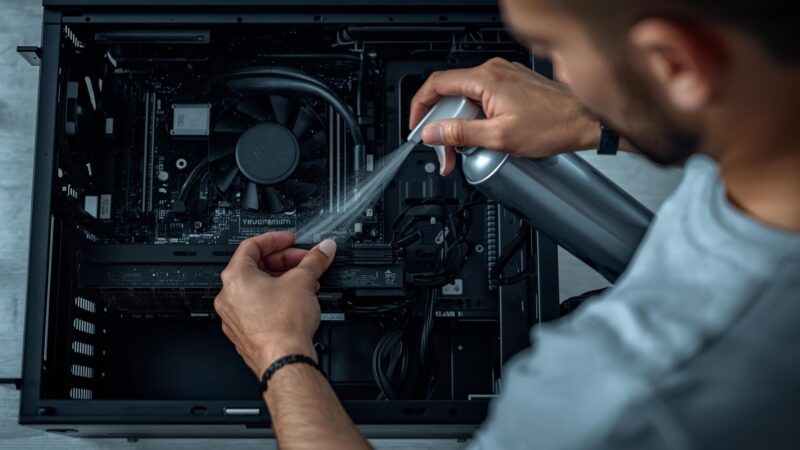
- Dust the keyboard with a soft brush once a month.
- Clean the screen with a microfiber cloth (the same cloth you use for glasses). Never use window cleaner.
- Do not eat or drink above the keyboard. Crumbs and water are dangerous for computers.
Teaching Children the Same Rules
If children use the computer, sit with them the first times. Show them:
- Never talk to strangers online
- Never give your real name or address
- Ask a grown-up before downloading anything
You now know the most essential tech tips for new PC users. Start using your computer today without fear. Every expert was once a beginner exactly like you.
Enjoy your new friend – the computer!
Frequently Asked Questions (FAQ)
Q: Do I need to turn off my computer every night?
A: It is best to turn it off or put it to sleep. This saves electricity and keeps it healthy.
Q: Is it safe to buy things online with my new computer?
A: Yes, if the website address starts with https:// and shows a small lock. Still use only trusted shops.
Q: My mouse moves the wrong way. What do I do?
A: Someone may have changed it to left-hand mode. Ask a friend or family member to help you change it back in Settings → Devices → Mouse.
Q: Can I use the same password for everything?
A: No. Use different passwords. If someone learns one, they should not get everything.
Q: Where can I learn more easy computer lessons?
A: Visit GCFLearnFree.org – they have free video lessons in very simple language.
You did it! You finished reading the essential tech tips for new PC users. Now go turn on your computer and try one new thing today. You will be proud of yourself.